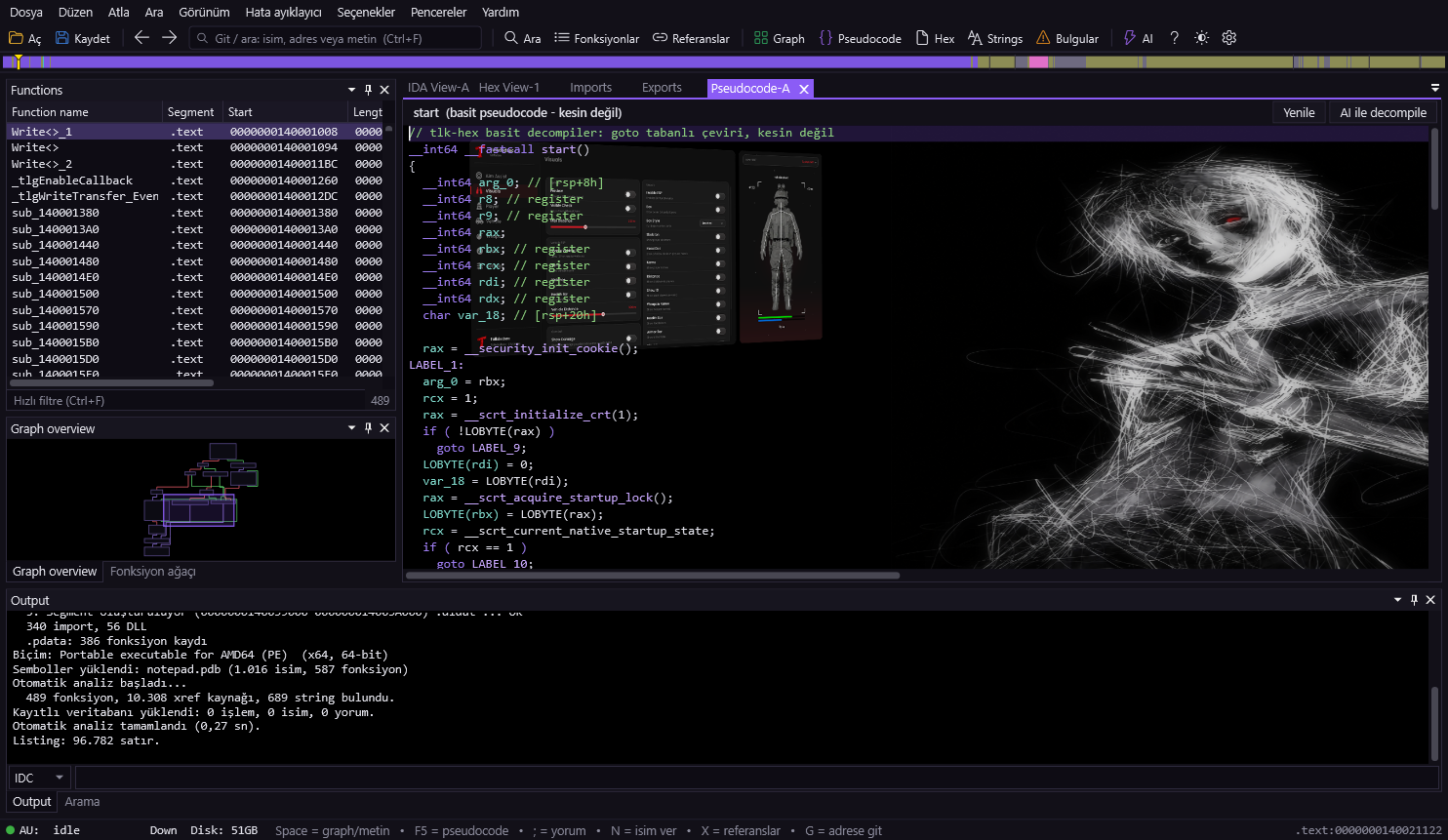
From opening a file to naming things and saving your work, in order.
On the welcome screen press Open file (Ctrl+O) or drag the file straight onto the window. EXE, DLL, SYS, ELF or raw binary — all work.
Analysis starts automatically; when the AU indicator in the status bar turns green you're ready. Large files may take a few seconds.
sub_XXXX names turn into real function names.Click a function in the Functions list on the left — the code opens in the middle. Type a name or address into the Go / search box at the top (Ctrl+F) and suggestions appear.
Double-click a name in the code (or Enter) to jump there; Esc goes back. The mouse back/forward buttons work too. Hover over a name to preview its contents.
The coloured strip at the very top is a map of the whole file — click anywhere to jump there.
Space toggles between text and the control-flow graph. Edges are colour-coded: green = condition true, red = false, blue = unconditional. Ctrl+wheel to zoom.
F5 opens the selected function's C-like pseudocode — a more readable summary than assembly.
For detailed search use the Search button in the toolbar or Ctrl+Shift+F. Pick a scope and type:
Names function/variable names ·
Strings text in the file ·
Code instruction lines ·
Bytes e.g. 48 8B ?? 05 (?? = any byte) ·
Immediate instructions where a number appears.
Click a result = preview, double-click / Enter = jump there.
Stop on a name or address and: N rename · ; comment · X "where is this used?" · C/D/A/U code / data / string / undefined.
In the Hex View tab you see raw bytes; press F2 to enter edit mode and change a byte. Changes are kept as patches.
From the File menu you can apply patched bytes to a new file or export them as DIF. The original file is never broken.
For Windows files, File → Download symbols brings real function names (also asked on first open).
If you have your own .pdb, use File → Load PDB file.
Downloaded symbols are cached; the same file is named offline and instantly next time.
Enter your own API key in Options → AI support. Then set the Output panel mode to AI and ask "what does this function do?", or use AI decompile in the Pseudocode tab for a cleaner translation.
 tlk
tlk